By Ethan Walker February 23, 2026
If you’re comparing mobile POS systems for restaurants, you’re probably trying to solve a few real problems at once: long waits to order, slow payments at the end of the meal, order mistakes between the floor and the kitchen, and managers who can’t see what’s happening until the shift is over.
The good news is that restaurant mobile POS systems have matured a lot—today’s platforms can handle tableside ordering, contactless payments, QR code ordering, kitchen routing, and detailed reporting without the “duct-tape” workarounds that used to be common.
This guide is written like I’d explain it to an operator before a purchase decision. You’ll learn what a mobile POS is, how mobile POS systems work for restaurants from order entry to reporting, what hardware and integrations matter, what can go wrong (Wi-Fi, batteries, device security), and how to roll out cloud-based mobile POS for restaurants without disrupting service.
Along the way, you’ll get practical checklists, comparison tables, and a 30/60/90-day rollout plan you can actually use.
What a mobile POS system is
A mobile POS system is a restaurant POS that runs on portable devices—typically handheld POS devices or tablets—so staff can take orders and accept payments anywhere in the venue instead of being tied to a fixed counter terminal. Think of it as your ordering and payment “front end” moving with the server, bartender, or runner.
Most mobile point-of-sale systems for restaurants are cloud-based. That means menus, pricing, modifiers, staff permissions, reporting, and device setup are managed from an online dashboard. Orders and payments sync across devices in real time, so the kitchen, bar, and manager views stay aligned.
Mobile doesn’t automatically mean “small” or “simple.” In 2026, restaurant mobile POS systems can support:
- Tableside ordering and payments
- Mobile card readers for tap, chip, and swipe
- QR code ordering for dine-in or pickup
- POS integration with kitchen display systems (KDS) or printers
- Tip adjustment and split payments
- Multi-location restaurant POS management
- Delivery and online ordering integration
- Offline mode POS options (with limits you must understand)
Pro Tip: When vendors say “mobile,” ask what’s truly mobile: ordering only, payments only, or both ordering + payments + tips + receipts + offline workflows. The difference matters on a busy shift.
How mobile POS systems work for restaurants (end-to-end workflow)
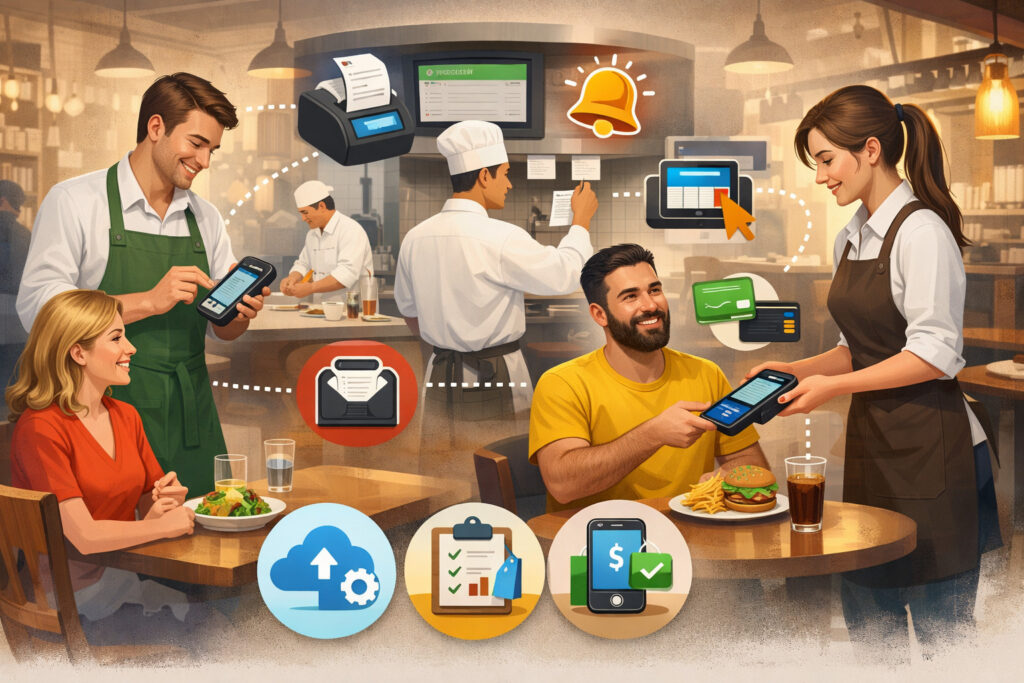
To evaluate any system, you need to understand the full workflow—not just the handheld device screen. Here’s how mobile POS systems work for restaurants end to end, from the moment a guest orders to the moment you analyze the shift.
1) Order entry (tableside, bar, line, or QR)
Staff enters an order on a handheld or tablet POS for restaurants. The screen should make it easy to:
- Choose table / seat positions
- Apply modifiers (temp, add-ons, allergies, courses)
- Fire items by course or hold items
- Handle comps/voids (with manager approval)
- Add notes that the kitchen can actually read
For QR code ordering, guests scan a code and order from their phone. The POS receives it as an order type you can route and track (dine-in, takeaway, pickup, etc.). The best systems treat QR orders as first-class tickets, not a separate “app thing” that breaks your kitchen flow.
2) Kitchen routing (KDS or printers)
Once the order is sent, the POS routes items to the right prep stations. This is where configuration matters:
- Hot line vs cold line
- Bar vs kitchen
- Dessert station
- Expo screen vs station printers
With POS integration with kitchen display systems (KDS), tickets appear on screens and move through stages (new → preparing → ready). With printers, tickets are printed at the station. Many operations use a hybrid: KDS for the line, printer for the bar, or vice versa.
3) Payment acceptance (tableside or at counter)
Mobile POS enables payment where the guest is—at the table, at the bar, in a queue, or curbside. That can include:
- Contactless payments (tap)
- Chip insert
- Swipe (fallback)
- Digital wallet methods supported by the processor
- Stored cards (if enabled and compliant)
For dine-in, tableside payment reduces end-of-meal bottlenecks. For quick service, line-busting reduces queue time during rushes.
4) Receipts and tips
Receipts can be emailed, texted, or printed. Tip flows vary by service model:
- Tip on the device
- Tip on a printed receipt (with tip adjustment later)
- Split tips or pooled tips (if the POS supports tip reporting)
Tip adjustment and split payments are critical “real-world” features. A system that can’t cleanly split checks by seat, item, or amount creates nightly chaos.
5) Reporting and analytics
After (and during) the shift, data goes into POS reporting and analytics:
- Sales by category/item/modifier
- Labor vs sales (if timeclock is integrated)
- Server performance and void/comp tracking
- Payment mix and reconciliation
- Discount usage
- Menu performance trends
Cloud-based dashboards let owners and managers check performance without being on-site, but you still want strong in-store controls and audit trails.
Pro Tip: Ask vendors to demo a complete loop: “Start a table, add seat numbers, send items to kitchen, split the check three ways, tip adjust later, then show me where the reports reflect all of that.” Demos that skip these steps hide the pain points.
Core components: hardware, software, and payment processing integration
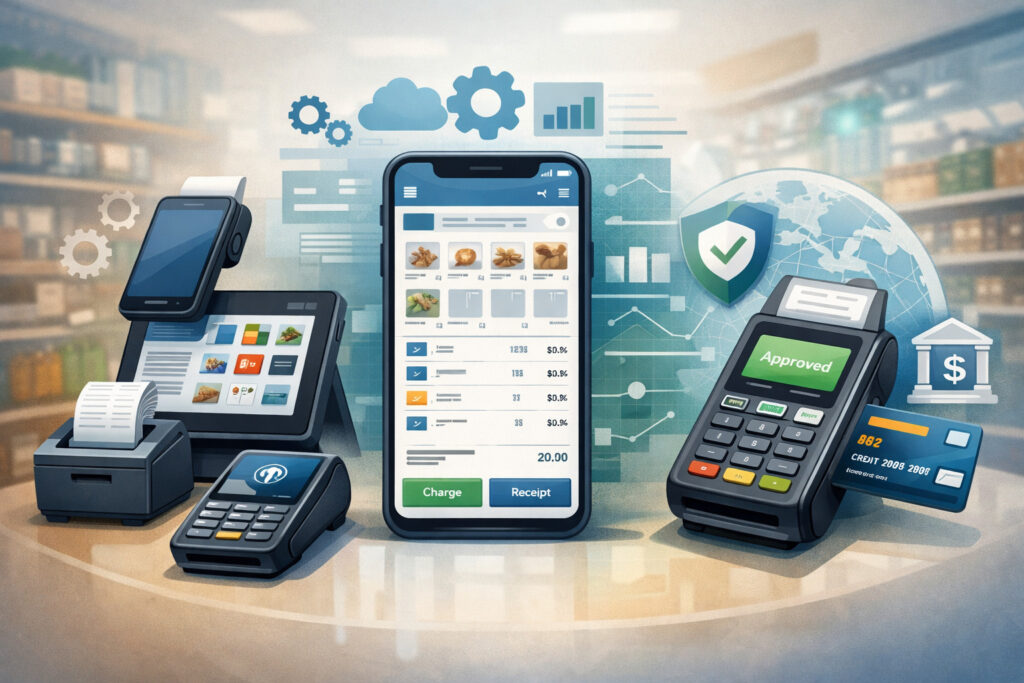
A mobile POS is an ecosystem. If one component is weak—like Wi-Fi design or card reader durability—you’ll feel it on a Saturday night. Here’s what makes up a working system.
Mobile POS hardware for restaurants (devices, readers, printers, network)
Restaurant POS hardware typically includes a mix of handhelds, tablets, stands, and back-of-house devices. Your selection depends on service style and physical layout.
Common components include:
- Handheld POS devices: Purpose-built units or ruggedized handhelds for servers and runners
- Tablets: Tablet POS for restaurants mounted at host stand, bar, or service stations
- Mobile card readers: Tap/chip/swipe readers (Bluetooth or built-in)
- Receipt printers: Network printers at stations or at a service area
- Cash drawers: Still relevant for some concepts
- Kitchen printers or KDS screens: For routing orders
- Network gear: Business-grade router + access points; optional cellular backup
In restaurants, hardware takes abuse: drops, spills, heat, and constant handling. A “consumer tablet with a cute case” can work in low-volume settings, but many operators graduate to more rugged options.
Pro Tip: Budget for protective cases, spare charging cables, and a charging routine. Lost power is the silent killer of mobile operations.
POS software: cloud dashboard, menus, roles, and reporting
The software layer is where “easy to use” becomes either true or marketing. Look for strong capabilities in:
- Inventory and menu management: Modifiers, combos, recipes (if supported), item availability, 86’ing
- Staff permissions and role management: What a server can void, discount, or comp; manager overrides; logs
- Floor plans and table management: Seat mapping, coursing, coursed firing, waitlists (optional)
- POS reporting and analytics: Customizable reports, export options, real-time dashboards
- Order types: Dine-in, takeaway, delivery, catering; ability to route each correctly
- Offline mode POS: Defined behavior if internet drops (more on this later)
Cloud-based mobile POS for restaurants makes it easier to update menus quickly and manage multiple locations, but you still want the in-store experience to be fast and resilient.
Restaurant payment processing: how integration really works
Payment processing integration is not just “we take cards.” It affects reliability, fees, dispute handling, and how quickly you can solve problems.
A well-integrated setup usually includes:
- Card-present processing via EMV and contactless
- Tokenization so the POS stores a secure payment token—not card data
- Batching and settlement processes (automatic or scheduled)
- Tip workflows (prompting, tip adjustment, tip reporting)
- Refunds and voids tied to user permissions and audit logs
Some POS providers require using their in-house processing. Others support multiple processors. What you want is transparency: who supports you when something fails—POS support or processor support—and how fast issues get resolved.
Pro Tip: During evaluation, ask: “If a payment fails at 8:30 PM, who do we call, and what’s the escalation path?” The answer tells you more than a feature list.
Mobile POS vs Traditional POS (comparison table)
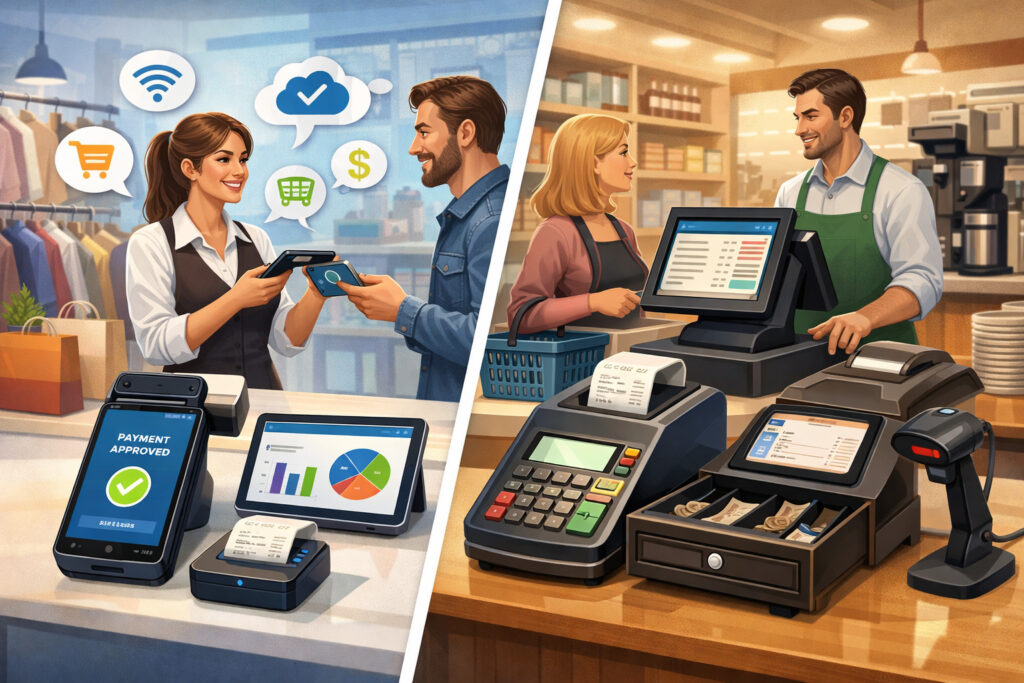
Below is a practical comparison of mobile and traditional fixed-terminal POS setups. Many restaurants run a hybrid: fixed terminals at key stations plus mobile devices on the floor.
| Category | Mobile POS systems for restaurants | Traditional POS (fixed terminals) |
|---|---|---|
| Order entry | Tableside, bar-side, line-busting, QR-supported | Mostly stationary (counter/server station) |
| Payment flow | Contactless payments at the table; mobile card readers | Typically pay at counter or bring receipt |
| Flexibility | High—devices move with staff | Lower—tied to terminals |
| Speed during rush | Strong for queue reduction and tableside closes | Can bottleneck at terminals |
| Hardware footprint | Smaller footprint; more charging needs | Larger footprint; fewer batteries to manage |
| Network reliance | More sensitive to Wi-Fi design and roaming | Still needs network, but fewer moving endpoints |
| Training | Often faster UI, but more device handling | Familiar to many staff; more steps away from guest |
| Cost considerations | Device + reader costs; subscriptions common; Wi-Fi upgrades often needed | Higher upfront terminal costs; may have different licensing models |
| Scalability | Easier to add devices, support multi-location dashboards | Scaling can require more terminals and on-site setup |
Pro Tip: Don’t choose “mobile” as an ideology. Choose it where it removes bottlenecks: tableside ordering, bar tabs, patio service, queue busting, and fast closes.
Key benefits: why operators adopt restaurant mobile POS systems
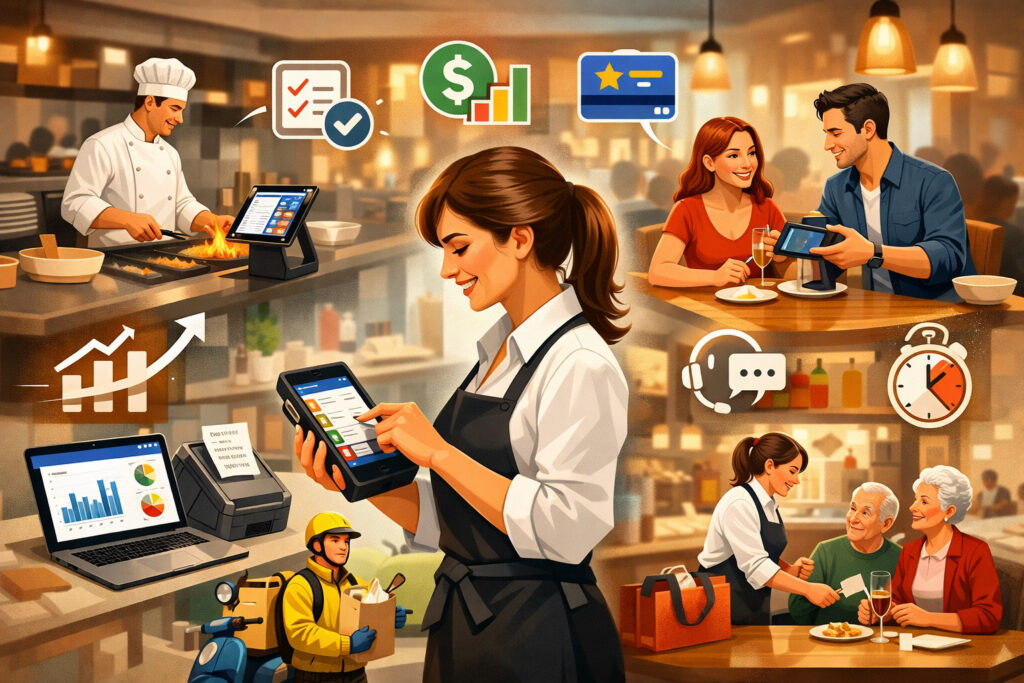
Mobile POS succeeds when it improves flow—not when it forces staff to “work around the system.” The benefits below are real, but only if configuration, training, and connectivity are done correctly.
Tableside ordering and payments that actually reduce friction
Tableside ordering and payments can reduce time lost to walking back and forth to terminals. That translates into smoother pacing:
- Guests order when they’re ready
- Modifiers and allergy notes are captured immediately
- Payment can happen at the end without waiting for a terminal
This also helps with guest perception. A fast, confident close feels professional. A long wait for the check doesn’t.
Tableside payments also support modern contactless payments habits. When the guest taps at the table, you reduce the awkward “I’ll be back with your card” loop and limit card handling.
Pro Tip: Configure “quick actions” for common tasks: reorder rounds, add modifiers, split checks by seat, and print/email receipts. Speed comes from workflow design, not just mobility.
Faster service and improved table turns (without hype)
Mobile POS can help you serve more efficiently, especially during peak hours, by reducing bottlenecks:
- Servers aren’t queueing at terminals
- Orders reach the kitchen faster
- Closing checks is smoother with tableside payment
However, don’t expect miracles if the kitchen is the constraint. If ticket times are already long, mobile order entry won’t magically fix throughput. It will, however, reduce front-of-house delays and help you identify where the real constraint is.
Pro Tip: Use POS reporting and analytics to separate “order delay” from “prep delay.” Otherwise, you’ll blame the wrong part of the operation.
Reduced order errors through better capture and routing
Order accuracy improves when details are entered at the point of conversation:
- Modifiers are selected, not “remembered”
- Seat numbers reduce runner confusion
- 86’d items can be blocked in the system
- KDS routing reduces “lost tickets”
This is especially valuable in full-service and high-modifier menus (burgers, pizza, allergens, custom bowls). The POS becomes a guardrail.
Better guest experience with modern ordering options
Mobile POS enables guest-friendly options that don’t feel like a gimmick:
- QR code ordering for low-contact ordering or overflow service
- Pay-at-table for faster exits
- Digital receipts
- Loyalty lookup tied to phone/email (if enabled)
Used thoughtfully, these features can reduce friction for guests who want speed while still supporting high-touch hospitality for guests who prefer it.
Limitations and operational considerations (what can go wrong)
Mobile POS is powerful, but it’s not “set it and forget it.” Most issues are predictable—and preventable—if you plan for them.
Wi-Fi reliability and network design
Mobile relies on Wi-Fi more than traditional setups. Problems show up as:
- Laggy order screens
- Devices dropping from the network
- KDS delays or missing tickets
- Payment failures if the device can’t reach the processor
To reduce risk:
- Use business-grade access points, not consumer routers
- Place access points to cover patio, private dining, and corners
- Separate guest Wi-Fi from POS traffic
- Consider a failover internet option (like cellular backup) for resilience
Pro Tip: Do a “walk test” during a demo or pilot: take an order in every corner of the venue, including patio and near kitchen equipment that can interfere with signal.
Battery life, charging discipline, and device availability
Handhelds and tablets introduce battery management. Common pain points:
- Dead devices mid-shift
- Not enough chargers or docks
- Devices “missing” because someone took it home
Operational fixes:
- Assign devices to roles or sections
- Use a charging station with labeled slots
- Build device checks into opening/closing duties
- Keep at least one spare device charged
Device security, durability, and loss prevention
Portable devices can be lost, stolen, or damaged. Protect yourself with:
- Durable cases and screen protectors
- Device passcodes and auto-lock
- Mobile device management tools (if supported)
- Strict staff permissions and role management (no shared logins)
Also consider how you’ll handle a lost device during service. Can you quickly deactivate it? Can you block access to comps/voids?
Staff training and change management
The best system fails if training is rushed. Staff need:
- The “why” behind workflow changes
- Practice with split checks, tip adjustment, and refunds
- Clear policies for comps/voids
- A plan for what to do when Wi-Fi is down
Training should be role-based. A bartender doesn’t need the same workflow as a host or manager.
Pro Tip: Make training part of the schedule, not an afterthought. Even 45–60 minutes of hands-on practice per role prevents weeks of frustration.
Integration capabilities that matter
Integrations are where a POS becomes an operating system. But integrations also introduce complexity, so you want the ones that truly support your concept.
Inventory, menu management, and purchasing workflows
At minimum, you want inventory and menu management that supports:
- Menu item availability (86’ing)
- Modifier control and forced modifiers
- Category-level reporting
- Basic ingredient tracking if supported
If you run a more complex operation (multiple prep stations, frequent specials), ask about:
- Recipe-based inventory (if available)
- Low-stock alerts
- Vendor ordering workflows
- Central menu deployment across locations (multi-location restaurant POS)
Pro Tip: If your menu changes often, evaluate how long it takes to update a modifier across multiple items. Tiny admin tasks compound quickly.
Online ordering, delivery, and QR code ordering
Delivery and online ordering integration has two big goals:
- Keep menus and pricing consistent
- Reduce re-entry and errors
In practice, you’ll want:
- Orders to appear as native tickets in the POS/KDS
- Clear order types and fulfillment timing
- Throttling or pausing options to protect the kitchen
- Accurate payment and tip reconciliation
QR code ordering should also route cleanly to the kitchen and support table/seat context (or at least table assignment).
Loyalty programs and guest engagement
Loyalty works best when it’s integrated into the POS so staff can:
- Attach a guest profile quickly
- Apply rewards correctly
- Avoid slowing down service
Look for a loyalty flow that’s fast at the device—especially at busy times. If a loyalty prompt adds 20 seconds to each check, staff will skip it.
Accounting software and payroll connections
For managers and owners, back-office integrations reduce admin time:
- Sales and tax exports
- Payment reconciliation summaries
- Tips and labor reports
- Timeclock exports (if the POS includes labor)
But be careful: “integration” can mean anything from a simple CSV export to a true sync. Ask vendors what’s automated vs manual.
Pro Tip: Decide what you need automated: daily sales journal entries, tip reports, or inventory updates. Don’t overbuy integrations you won’t maintain.
Security basics: PCI compliance, tokenization, permissions, and audit trails
Security doesn’t need to be mysterious. The goal is simple: protect card data, limit who can do what, and keep logs that help you manage risk.
POS security and PCI compliance (concepts you should understand)
PCI compliance is a set of standards designed to protect cardholder data. In restaurant terms, you care about:
- How card data is captured (secure readers)
- Whether card data is stored (ideally not stored by you)
- How users access the POS (unique logins, role restrictions)
- Whether systems are updated and patched
In most modern setups, the POS and processor use compliant methods so sensitive card data doesn’t live on your devices or your network in a readable form.
Pro Tip: Ask vendors where card data flows and what your responsibilities are—network security, password policies, and device management are typically on you.
Tokenization and why it matters for restaurants
Tokenization replaces card data with a secure token after authorization. Tokens can be used for things like:
- Refunds
- Adjusting tips after the shift
- Storing a card on file (if enabled) without storing card numbers
This reduces risk because tokens are not usable like real card numbers if intercepted.
Staff permissions, role management, and audit trails
Strong staff permissions and role management is one of the most valuable “security” features because it reduces internal mistakes and fraud:
- Servers can’t void after payment without approval
- Discounts require a manager code
- Refunds and comps are logged by user
- High-risk actions trigger alerts or appear in exception reports
Audit trails help you coach and protect margins without being overly punitive. You want the system to show patterns: repeat voids, unusual discounts, late-night refunds.
Pro Tip: Build roles around real job responsibilities. Avoid shared logins—shared logins destroy accountability and reporting accuracy.
Offline mode POS: what “offline” really means
Many platforms advertise offline mode POS, but “offline” isn’t one thing. You need to understand what continues working and what stops when internet connectivity fails.
Possible offline behaviors include:
- Order entry continues locally and syncs later (best case)
- Printing to local printers continues but cloud reporting pauses
- Payments are limited or paused depending on processor and device capabilities
- Stored cards and some lookups may stop working
Offline payments are especially tricky. In many cases, payments require a live connection for authorization. Some systems may allow limited offline payment capture with later submission, but that creates risk (declines later, reconciliation issues). Don’t assume it’s available or appropriate.
Pro Tip: Ask: “During an outage, can we still take orders, send to kitchen, and accept payments? Which payment types work? What happens to tips and receipts?” Get the answer in writing.
Cost overview: hardware, software subscriptions, processing, and add-ons (no hype)
Costs vary widely, but you can evaluate them in a structured way. A realistic budget considers four buckets.
1) Hardware costs
Hardware typically includes:
- Handhelds or tablets (quantity based on staffing)
- Mobile card readers (sometimes one per device)
- Charging docks, spare cables, cases
- Printers, cash drawers (if needed)
- KDS screens or kitchen printers
- Network upgrades (often overlooked)
A cheap device plan can become expensive if replacements are frequent. Durability matters.
2) Software subscription costs
Most cloud systems use subscriptions that may be priced by:
- Location
- Device
- Feature modules (online ordering, loyalty, advanced reporting)
- Support tiers
Make sure you understand what’s included in the base plan vs add-ons.
3) Restaurant payment processing costs
Processing cost depends on:
- Card-present vs card-not-present mix
- Ticket size
- Tips
- Refunds/chargebacks
- Processor pricing model
Ask for transparent pricing and how fees appear on statements. Also ask about hardware compatibility with the processor.
4) Support, implementation, and optional add-ons
Add-ons may include:
- 24/7 support plans
- On-site installation
- Menu build services
- Advanced integrations
- Additional reporting modules
Pro Tip: When comparing proposals, normalize the costs: “What’s the expected monthly for software + support + add-ons?” and separately evaluate “What’s the expected processing cost structure?” Treat them as different decisions even if bundled.
Choosing the right system: must-have features, scalability, and contract red flags
The right POS is the one your staff will use correctly during stress. Here’s how to evaluate without getting lost in feature lists.
Must-have feature checklist (practical operator view)
Use this checklist to drive demos and trials:
- Fast order entry with modifiers and notes
- Table/seat management (for full-service)
- Course firing and holds (if needed)
- Reliable POS integration with kitchen display systems (KDS) or printers
- Split checks by seat/item/amount
- Tip prompts + tip adjustment workflows
- Contactless payments + chip
- Refunds and void controls with manager approvals
- Staff permissions and role management + audit trails
- Offline mode POS behavior clearly defined
- POS reporting and analytics that match your decisions (labor, menu, comps/voids)
- Delivery and online ordering integration that feeds kitchen cleanly
- Multi-location tools if you plan to expand
Pro Tip: Rank your top 10 workflows by frequency and stress level. Then test those workflows in a demo. Rare edge cases shouldn’t drive the purchase.
Cloud vs traditional POS: what to prioritize for your operation
Cloud-based mobile POS for restaurants offers:
- Easier remote management
- Faster updates
- Better multi-location visibility
- Integrations that evolve over time
Traditional systems can offer:
- Strong on-prem stability in some setups
- Familiar workflows for some teams
- Different licensing structures
But in 2026, many “traditional” systems also have cloud components. The real question is resilience and support: does it keep working during peak hours, and can you get help quickly?
Scalability for growth (multi-location, high-volume, and new channels)
If expansion is on your roadmap, evaluate:
- Centralized menu deployment
- Consistent reporting across locations
- User roles across locations
- Support for multiple revenue channels (dine-in, takeaway, delivery)
- Hardware standardization options
A system that works for one location but becomes messy at three locations will slow growth.
Contract red flags to watch for
Look for these common issues:
- Long-term contracts with steep early termination fees
- Mandatory processing with unclear pricing changes
- “Intro pricing” that increases after a short window
- Hardware leasing that costs more than purchasing
- Vague support terms (hours, response time, escalation)
- Paid features not disclosed until after signing
Step-by-step implementation guide (from planning to pilot)
A smooth launch is usually about preparation, not heroics. Here’s a proven implementation path that fits most restaurants.
Step 1: Map your workflows before touching the POS
Start with how you actually run service:
- Order-taking flow (who takes orders, where, and how)
- Kitchen routing needs (stations, timing, expo)
- Payment flow (tableside vs counter, tipping norms)
- Refund/void policies
- Delivery/pickup flow and handoff points
Write this down in simple bullet points. Your POS configuration should mirror your service model—not the vendor’s default template.
Pro Tip: Include exceptions: large parties, split checks, comps, staff meals, and item 86’ing. These are where systems fail.
Step 2: Build and validate your menu structure
Menu build is not data entry; it’s system design:
- Categories and modifiers
- Forced modifiers vs optional add-ons
- Upsell prompts (used carefully)
- Tax rules (dine-in vs takeaway if applicable)
- Allergen notes and kitchen instructions
After build, validate with real scenarios: “burger medium-well, no onion, add bacon” should be fast and unambiguous in the kitchen.
Step 3: Configure kitchen routing (KDS/printers) and ticket rules
Kitchen routing deserves dedicated time:
- Map each menu item to a station
- Decide when tickets fire (immediately vs coursed)
- Configure expo flows (who bumps tickets, who sees what)
- Set up reprint rules and error handling
Test in a quiet hour, then test again with simulated rush orders.
Step 4: Set up payments, tips, and receipts
Test the real payment workflow end to end:
- Tap, chip, and fallback behavior
- Tip prompts and tip adjustment workflow
- Split payments and partial payments
- Refunds and void controls
- Receipts (email/text/print)
Make sure your manager knows how to troubleshoot common issues: reader pairing, declined transactions, offline behavior, and receipt settings.
Step 5: Create roles, permissions, and manager controls
Define roles such as:
- Server
- Bartender
- Host
- Manager
- Admin
Then configure what each role can do—especially discounts, comps, voids, and refunds. Turn on audit trails and exception reporting if available.
Step 6: Train staff by role (hands-on practice)
Training should be practical:
- Servers: tableside ordering, seat numbers, splitting checks, closing checks
- Bartenders: tabs, quick reorders, partial payments
- Hosts: waitlist/table management (if used)
- Managers: overrides, comps/voids, reports, end-of-day checks
Use short drills, not lectures.
Step 7: Run a pilot phase before full rollout
Pilot for a defined period (several shifts). During pilot:
- Keep a small number of devices
- Use a limited set of features at first
- Track issues and adjust configuration daily
- Get staff feedback in a structured way (what slowed you down?)
Pro Tip: Pilot success isn’t “no problems.” It’s “problems are visible, fixable, and decreasing.”
30/60/90-day rollout plan (practical and repeatable)
A phased rollout reduces risk and helps your team build confidence while you fine-tune configuration.
Days 1–30: Setup and staff onboarding (Month 1)
Focus on stability and core workflows:
- Finalize menu, modifiers, and tax settings
- Configure kitchen routing and KDS/printers
- Set roles, staff permissions, and manager overrides
- Install and test network coverage (including patio/weak zones)
- Train staff with role-based drills
- Run pilot shifts and refine
Success metrics (practical, not hype):
- Orders reach kitchen reliably
- Payment flow works consistently
- Staff can split checks and handle tips confidently
- Managers can run end-of-day and basic reports
Pro Tip: Lock down menu changes during launch week unless critical. Constant changes create confusion and training gaps.
Days 31–60: Performance monitoring and adjustments (Month 2)
Now optimize and expand:
- Tighten modifier flows based on staff input
- Reduce screen taps for common actions (shortcuts/favorites)
- Tune KDS timing and ticket prioritization
- Add online ordering or QR code ordering (if planned)
- Set up exception reports: voids, comps, refunds, discounts
- Build manager routines: daily reconciliation, weekly sales review
Month 2 is where you stop “making it work” and start “making it smooth.”
Days 61–90: Reporting optimization and advanced features (Month 3)
Use data to improve operations:
- Build weekly dashboards (sales mix, labor alignment, peak hours)
- Identify menu opportunities (high volume/low margin items, modifier trends)
- Expand loyalty program if it fits your concept
- Formalize SOPs for outages and device handling
- If multi-location, standardize the configuration and reporting structure
By Day 90, you want fewer workarounds and a repeatable system you can scale.
Pro Tip: Hold a 30-minute “POS ops review” weekly. Small adjustments compound into big improvements over a quarter.
Mobile POS features by restaurant type (comparison table)
Different concepts need different strengths. Use this table to prioritize features based on your service model.
| Restaurant type | Highest-impact mobile POS features | Hardware priorities | Integration priorities |
|---|---|---|---|
| QSR / counter service | Line-busting, fast modifiers, contactless payments, quick receipts | Tablets at counter + a few handhelds for rush | Online ordering + delivery and online ordering integration, simple reporting |
| Full-service restaurant | Tableside ordering and payments, seat mapping, coursing, split checks, tip adjustment | Durable handheld POS devices, reliable Wi-Fi coverage, optional fixed stations | POS integration with kitchen display systems (KDS), reservations/waitlist (optional), accounting export |
| Bar / nightlife | Fast tab management, quick reorders, partial payments, offline resilience | Handhelds with rugged cases; fast card readers; charging strategy | Inventory and menu management for pours/items, advanced reporting, staff permissions |
| Food truck / mobile vendor | Compact setup, offline mode POS clarity, quick menu edits, QR code ordering for pickup | Tablet + mobile card reader; cellular connectivity backup | Simple online ordering/pickup, lightweight inventory, streamlined reporting |
Pro Tip: Match the POS to your busiest moment. A system that’s “fine” at 3 PM but clunky at peak will frustrate staff and guests.
FAQs
Q1) What is a mobile POS system for restaurants?
Answer: A mobile POS system is a restaurant point-of-sale platform that runs on handheld POS devices or tablets so staff can take orders and accept payments anywhere. Instead of relying only on fixed terminals, you can handle tableside ordering and payments, reduce back-and-forth walking, and keep orders flowing directly to the kitchen.
Q2) How does a mobile POS connect to the kitchen?
Answer: The POS sends orders over your network to either a kitchen printer or a KDS. With POS integration with kitchen display systems (KDS), tickets appear on screens by station and move through stages (new, preparing, ready). With printers, tickets print at the right prep area based on routing rules you configure.
Q3) How do mobile POS systems work for restaurants during a rush?
Answer: During peak periods, servers can enter orders tableside, bartenders can run tabs from the bar, and managers can move devices to line-bust. The key is fast order entry screens, stable Wi-Fi, and well-configured kitchen routing so tickets hit the right station immediately.
Q4) Can mobile POS systems work offline?
Answer: Some can, but offline mode POS varies by provider. Many systems allow order entry and local ticketing when the internet drops, then sync later. Payments are often limited without a live connection. Always confirm what works offline: ordering, kitchen routing, and each payment type.
Q5) Are mobile POS systems secure?
Answer: They can be secure when set up correctly. Look for POS security and PCI compliance features such as tokenization, encrypted card readers, unique staff logins, role permissions, and audit trails. Most risk comes from weak passwords, shared logins, poor network setup, or lost devices without controls.
Q6) What hardware is required for restaurant mobile POS systems?
Answer: At minimum: a tablet or handheld device, a mobile card reader (if not built-in), and a reliable network. Many restaurants also use receipt printers, cash drawers (if needed), and KDS screens or kitchen printers. Don’t forget charging docks, cases, and network access points.
Q7) How much does a mobile POS system cost?
Answer: Costs typically include hardware (devices/readers/printers), a software subscription, restaurant payment processing fees, and optional add-ons (online ordering, loyalty, advanced reporting, premium support). Your total depends on device count, feature modules, and service model.
Q8) Is mobile POS better than traditional POS?
Answer: It depends on your workflow. Mobile POS is better when mobility removes bottlenecks—tableside ordering, patio service, line-busting, and fast closes. Traditional fixed terminals can be simpler for some counter workflows. Many restaurants run a hybrid for best results.
Q9) Can it handle split checks and tips?
Answer: Good systems can handle split payments by seat, item, or amount, and support tip prompts plus tip adjustment after the shift. Test this during demos—splitting and tipping are where many systems feel great in theory and painful in practice.
Q10) Does it integrate with online ordering?
Answer: Many do. Delivery and online ordering integration should feed tickets into the POS and kitchen workflow as native orders, not as a separate tablet. Ask how menus sync, how modifiers map, and how you pause or throttle orders when the kitchen is overloaded.
Q11) What’s the difference between cloud vs traditional POS?
Answer: Cloud vs traditional POS often refers to where management and data live. Cloud-based systems use online dashboards for menu updates and reporting, while traditional systems rely more on local servers. Cloud systems are typically easier to manage remotely and scale, but you must plan for network reliability.
Q12) Can QR code ordering replace servers?
Answer: QR code ordering can reduce pressure during peak times, but it doesn’t replace hospitality. Many restaurants use it as an option for guests who prefer speed, or for overflow zones like patios. The best approach is to offer it without forcing it.
Q13) What about refunds, chargebacks, and reconciliation?
Answer: A strong POS ties refunds and voids to user permissions and keeps logs. Reconciliation depends on clean batching/settlement from the processor and clear reporting from the POS. Ask how disputes are handled and whether support is POS-led, processor-led, or shared.
Q14) How long does implementation take?
Answer: Implementation time depends on menu complexity, network readiness, and integration scope. A simpler setup can be ready quickly, while complex routing, KDS, online ordering, and multi-location configurations take longer. The safest approach is a pilot first, then full rollout.
Q15) What’s the biggest mistake restaurants make when switching to mobile POS?
Answer: Underestimating network and training. Wi-Fi design and device discipline (charging, logins, handling) are operational requirements. The second mistake is failing to map workflows first, which causes mismatched routing, confusing modifier flows, and slow service.
Conclusion
Mobile POS systems for restaurants can improve service flow when they’re chosen and implemented based on real operations—not feature hype. The best systems support fast order entry, clean kitchen routing, reliable payments, strong reporting, and tight security controls.
The worst systems look great in a demo but fall apart when Wi-Fi roams, batteries die, or staff needs to split checks and adjust tips under pressure.